

What Is SUM Excel Function?
The SUM function in Excel enables users to add individual numeric values, cell references, ranges, or all three together using the formula =SUM(). Likewise, using the Auto Sum formula in Excel, i.e., “∑” automatically adds all the numeric values listed in a particular row or column. It is part of the Math and Trigonometry function.
For example, the following image shows two numbers, 10 and 20, in cells B1 and C1. We can add both numbers using the SUM formula in the merged cells B2 and C2.
=SUM(B1,C1)
Frequently Asked Questions (FAQs)
Below is the step by step process of adding numbers using the SUM function:
1. Select a blank cell.
2. Type the formula =SUM(….
3. Select the range of the data / or select the individual values you want to add.
4. Press “ENTER.”
For example, the image below shows multiple values. Here, we will calculate the sum of these numbers using the SUM function and Auto Sum “∑.”
1. Column A shows the integer numbers and decimal numbers
2. Enter the SUM formula in cell A9.
=SUM(A2:A8)
3. Press the “Enter” key. The results are shown in cell A9 as ‘12952.304’ of the image below.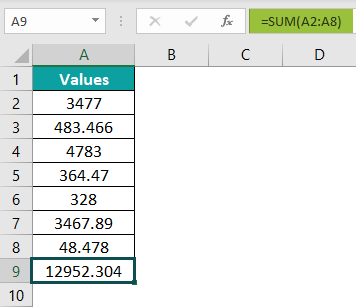
The “Auto Sum” button in the “Formula” tab also adds up the values with just one click, as shown in the following image. It adds the value above cell A9 chosen for the result.
The formula shows up automatically by the click.
=SUM(A2:A8)
The result is as same as shown in the above image.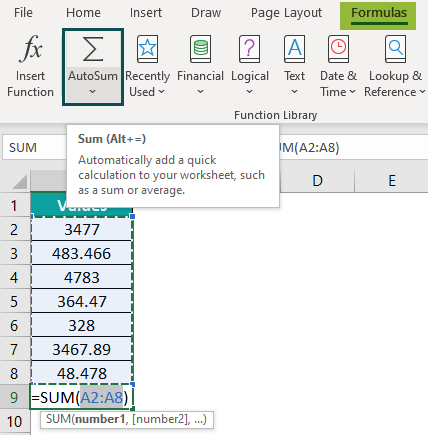
The SUM function is a means to add all numbers in a range of rows or columns and returns the output. It is a built-in Excel function listed under the Math & Trig Function.
=SUM(number1,[number2],…)
One can activate the SUM formula in Excel using the following steps:
1. Select the empty cell which will contain the result.
2. Select the “Formulas” tab.
3. Click on the “Math & Trig” option.
4. Select the “SUM” option.
5. The “Function Arguments” window pops up.
6. Enter the value in the “number 1” and “number 2” as the number of arguments.
7. Click OK.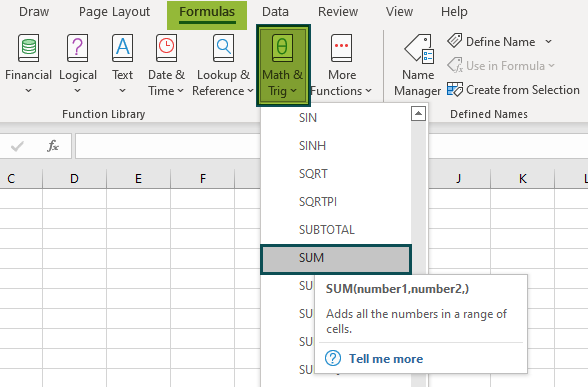
Download Template
📥Download the ready-to-use Excel template to practice this tutorial yourself.
Download Excel TemplateRecommended Articles
This has been a guide to SUM Excel Function. Here we learn to use the SUM formula in excel with examples, troubleshooting, and a downloadable excel template. You can learn more from the following articles –