
What is LEN Function in Excel?
The LEN excel function counts the number of characters of a cell. Precisely, it counts letters, numbers, special characters, punctuation marks, and all kinds of spaces (leading, trailing, and between the words). The LEN returns only a numerical value as the output. It is categorized as a Text function and is available in almost all versions of Excel.
For example, in the following image, the formula “=LEN(A2)” counts the length of the string of cell A2.
Frequently Asked Questions (FAQs)
The LEN function returns the length of the supplied string. This function can be supplied cell references or range references containing text strings, numbers, spaces, and special characters. Text strings supplied directly must be enclosed within double quotation marks.
The syntax of the LEN function of Excel is stated as follows:
“LEN(text)”
The “text” argument is mandatory.
Note: For the working of the LEN function, refer to the examples in this article.
Let us use the LEN function to count the characters of each cell of the range A2:A4. The values are shown in the following image.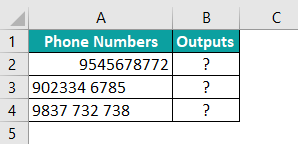
The steps for using the LEN function in Excel are listed as follows:
Step 1: Enter the following LEN formula in cell B2. The beginning and ending double quotation marks need not be entered in Excel.
“=LEN(A2)”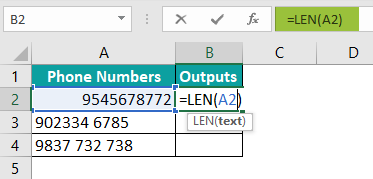
Step 2: Press the “Enter” key. The output is 10, as shown in the following image.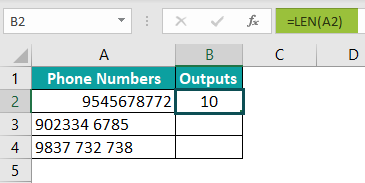
Step 3: Drag the formula of cell B2 till cell B4 by using the fill handle. The LEN function has returned the count of numbers of cells A2, A3, and A4 in the following image.
Notice that the numbers in each of the three cells are 10. However, cells A3 and A4 contain spaces too. The former contains one space, while the latter contains two space characters. These spaces are included in the output of the LEN function.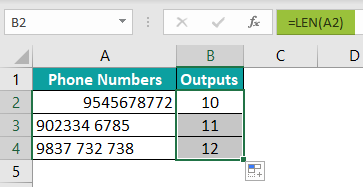
The steps to access the LEN function of Excel are listed as follows:
a. Click the “text” drop-down from the “function library” group of the Formulas tab.
b. Select the “LEN” function.
c. Specify the single argument in the “function arguments” window.
d. Click “OK” to find the character count.
The selections of steps “a” and “b” are shown in the following image.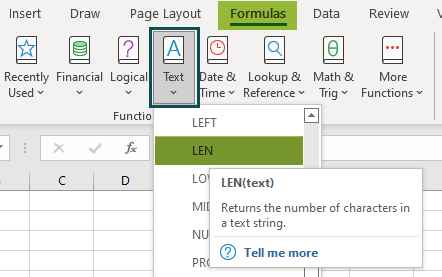
Download Template
📥Download the ready-to-use Excel template to practice this tutorial yourself.
Download Excel TemplateRecommended Articles
This has been a guide to the LEN function of Excel. Here, we learn how to use the LEN formula in Excel with the help of examples and a downloadable Excel template. You can learn more from the following articles –