

What Is COUNTA Excel Function?
The COUNTA Excel Function in Excel calculates all non-blank cells containing numerical and alphabetical values in a table array. It is a Statistical Excel Function and returns only a numerical value.
For example, in the following image, we will count all the non-blank cells having numbers and alphabets in column A using the COUNTA Excel function in cell B2.
=COUNTA(A2:A5)
Frequently Asked Questions (FAQs)
Below is the step by step process of counting non-blank cells using the COUNTA function:
1. Select the empty cell
2. Type =COUNTA(
3. Double click on the COUNTA command
4. Select the range of the cell or array
5. Press “Enter.”
For example, the image below shows the Annual Budget of the firm’s Departments. The values include the Departments and the amount of the Annual Budget. Here, we will try to calculate the number of all cells having numbers and letters and no text String within (“ “) quotes using the COUNTA function.
In the table, the data is reflected as below:
– Column A shows the Departments
– Column B contains the Annual Budget
– Cell C2 calculates the number of numeric value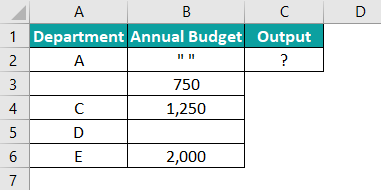
Enter the COUNTA Excel function in Cell C2.
=COUNTA(A2:B6)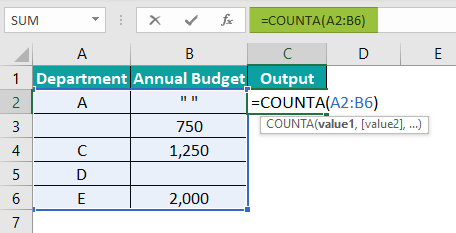
Press the “Enter” key. The results are shown in cell C2 as ‘8’ of the image below.
Therefore, the COUNTA function counts the number and letters and no text string within (“ “) quotes as a value.
One can activate the COUNTA function in Excel using the following steps:
1. Choose the empty cell which will contain the result.
2. Go to the “Formulas” tab and click it.
3. Select “More Functions” from the drop-down menu.
4. Select “Statistical” from the drop-down menu.
5. Select “COUNTA” from the drop-down menu.
6. A window called “Function Arguments” appears.
7. As the number of arguments, enter the value in the “Value 1” and “Value 2”.
8. Select OK.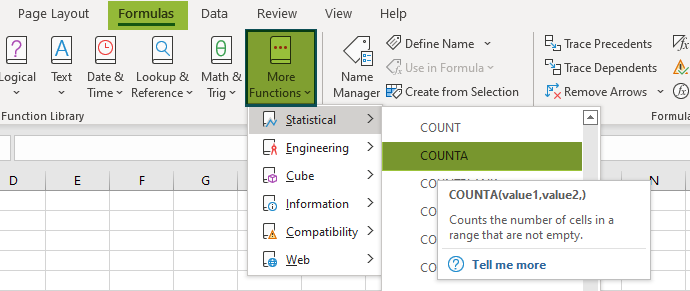
The image below depicts the mixed content. The values include the letters, phrases, numbers, dates, and empty text strings within (“ “) quotes. Here, we will try to calculate the number of all cells having content except blank cells with multiple criteria, i.e., passing multiple arguments using the COUNTA function.
In the table, the data is reflected as below:
– Columns A and B contain Contents
The steps to count the number of non-blank cells are as follows:
Step 1: First, we will choose the cell where we want the result to show up. Cell B7 would be the cell in this case.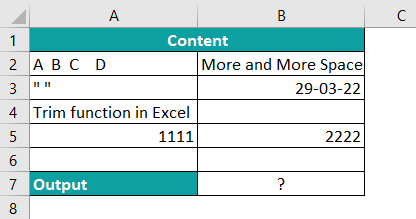
Step 2: Enter the formula that needs to count values from the table. Select the value1, which is the range from the starting cell address to the ending cell address of the table, i.e., A2:A6.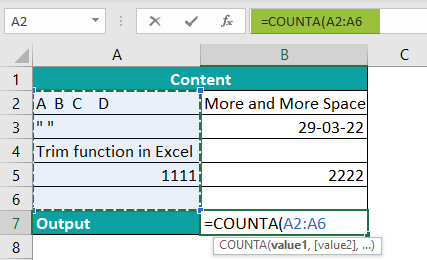
Step 3: Select the value2, which ranges from the starting cell address to the ending cell address of the table, i.e., B2:B6. The complete COUNTA Excel function will be:
=COUNTA(A2:A10,B2:B6)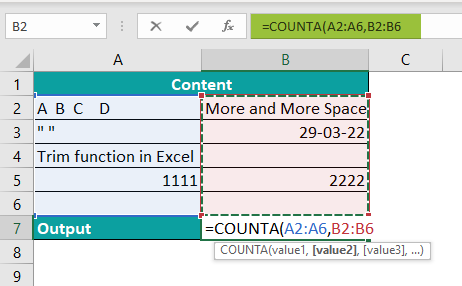
Step 4: After entering the values in the preceding step, press the “Enter” key. The result is shown in cell B7 as ‘7’ in the image below.
Therefore, the COUNTA function counts all the numbers, letters, phrases, dates, and empty text strings within (“ “) quotes but does not count the blank spaces in the table. The total cell in the table is 10, but there are three empty cells in the table, which the COUNTA function did not count.
Download Template
📥Download the ready-to-use Excel template to practice this tutorial yourself.
Download Excel TemplateRecommended Articles
This has been a guide to COUNTA Excel Function. Here we learn using the COUNTA formula with basic and advanced examples and a downloadable excel template. You can learn more from the following articles –